
Activating your Roomzilla Account
Activating your Roomzilla Account
Ready to join Roomzilla?
If you have decided to switch your Roomzilla trial into a full account, we do have a couple of options; find them below.
Subscription plans
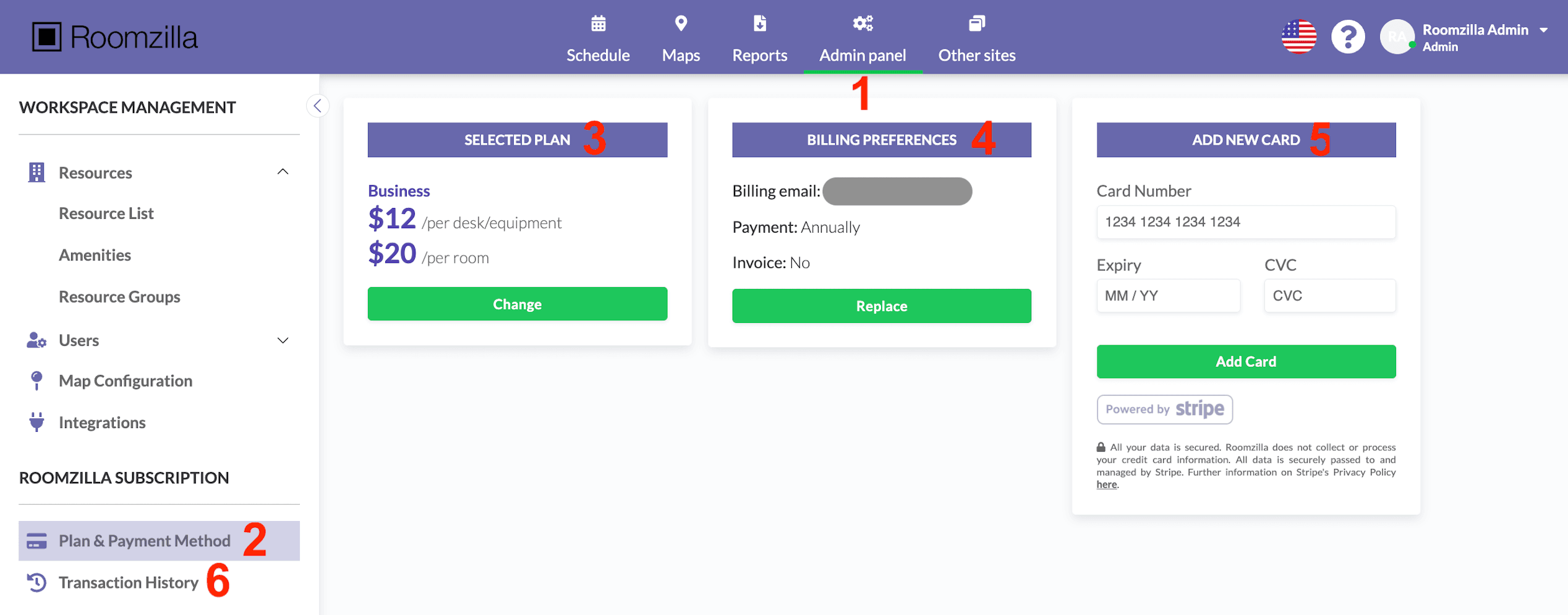
Start by selecting your desired subscription plan. Go to Admin panel [1] > Plan & Payment Method [2] tab under Roomzilla Subscription section > Selected Plan [3]
We offer three subscription plans: Free, Standard, and Business, each tailored to different needs and preferences. Our pricing structure is based on the number of active resources, with higher-tier plans offering additional functionalities.
- Free Plan: Ideal for basic needs, the Free plan provides essential features but may have limitations, such as the absence of reports and integration features. Includes up to three bookable resources.
- Standard Plan: Designed for more advanced requirements, the Standard plan offers enhanced functionalities, excluding the “Room Display” feature.
- Business Plan: Our most comprehensive option, the Business plan includes all features, providing users with complete access to Roomzilla’s capabilities.
For more detailed information, please refer to our [pricing page].
Credit Card
To continue using your Roomzilla account after the trial period, you’ll need to add a credit card. This action is required to prevent the automatic deletion of your account and to activate your subscription.
To activate your account and automatically pay the fee, follow the steps below:
1. Go to: Admin panel [1] > Plan & Payment Method [2] tab under Roomzilla Subscription section > Add New Card [5]
2. Securely enter your credit card details through our payment provider, Stripe. Once you’ve entered your information, click “Add Card” to save it to your account.
3. Once you’ve saved your card, your Roomzilla account will be fully activated. After your 14-day trial, the prorated fee for the rest of the month will be charged at the beginning of the next month.
4. You’ll find a complete history of these payments in the Transaction History section [6].
Billing Preferences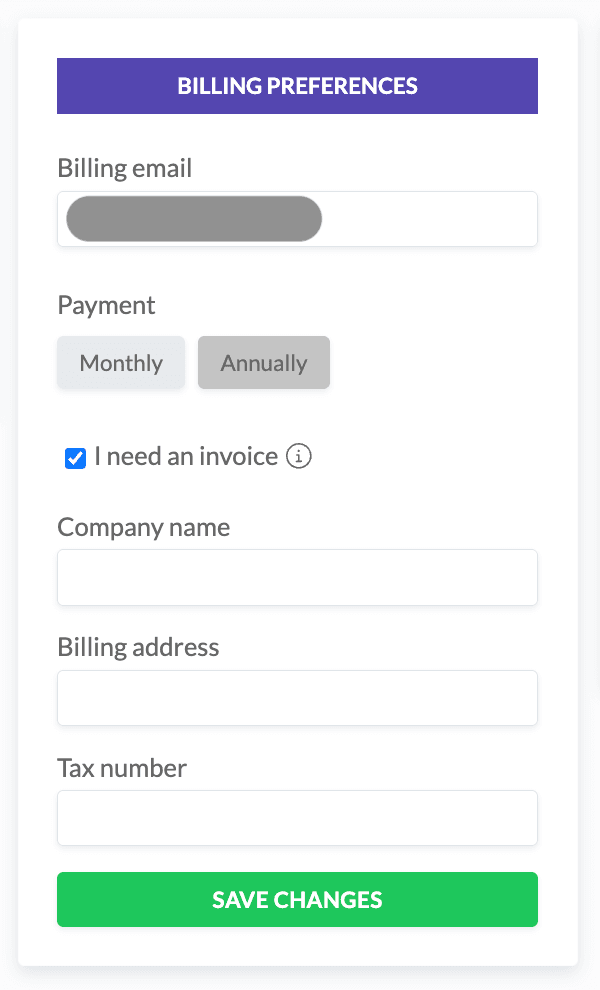
To receive invoice documents, in addition to automatic credit card receipts, update the Billing Preferences section [4]
- Enter an email address to receive credit card receipts and invoices
- Choose payment frequency – whether you prefer to be charged at the beginning of each month or annually.
- Check the “I need an invoice” box if you wish to receive invoices in addition to the credit card receipts. Fields for entering billing information (Company name, Billing address, and TAX number) will appear.
3. Save changes.
Annual Subscription
You can pay for your annual subscription with one of the following methods:
- Credit Card added on file – it’s the default and easiest way for both sides,
- direct invoice payment, using an invoice payment link (via QuickBooks Online Payments: [more details in this article]), based on an invoice we send via email,
- ACH transfer – a direct bank transfer that you handle on your end, based on an invoice we send via email.
Please contact us at billing@roomzilla.net if you’d like to change from the default automatic credit card charges method to another.
Invoices
Please note that invoices are issued at the beginning of each new billing cycle (month) and sent to the provided billing email.
For more details, please refer to the following article: [link].