
Custom fields
Custom fields
Enhance your booking process by customizing the reservation form to include specific questions relevant to your operational needs.
This feature enables you to collect essential information at the point of booking, streamlining planning and coordination efforts.
Examples of data you can request include:
- Team or department name
- Company name (for external participants)
- List of attendees or designated point of contact
- Requirements for IT support, catering, or other services
- Contract number, subscription ID, or relevant licensing details
By capturing these details in advance, you gain clear visibility into the purpose and requirements of each reservation, eliminating the need for follow-up communication.

Setting up custom fields
1. To customize your reservation form fields, log in to your Admin account and go to the “Admin panel” tab [1]. There, in the “Reservation” section, find “Booking Options & Limits” sub-section [2]. On the right you will see “Custom reservation form fields” category [3].
2. After clicking the “Add custom field” link [4], a new input area will appear, allowing you to define a custom reservation form field.
Please follow these steps:
Enter the input label – This is a required field and will be displayed as the question or prompt on the reservation form.
Select visibility – Choose whether the field should be available only to external guests.
Mark as required (if needed) – Specify whether this field must be completed before the reservation can be submitted.
This customization enables you to gather specific information tailored to your needs at the time of booking.
See the example below:

3. Remember to click the green “SAVE” button to save your changes when you are done.
Custom fields visibility
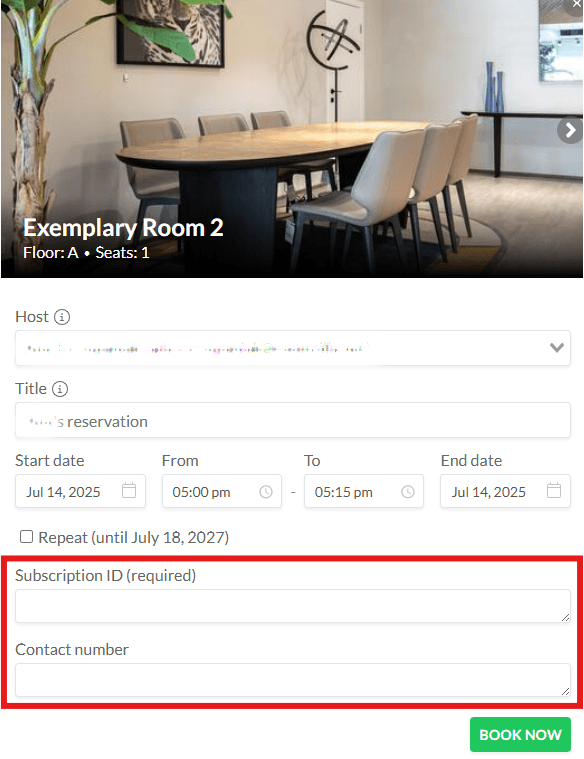
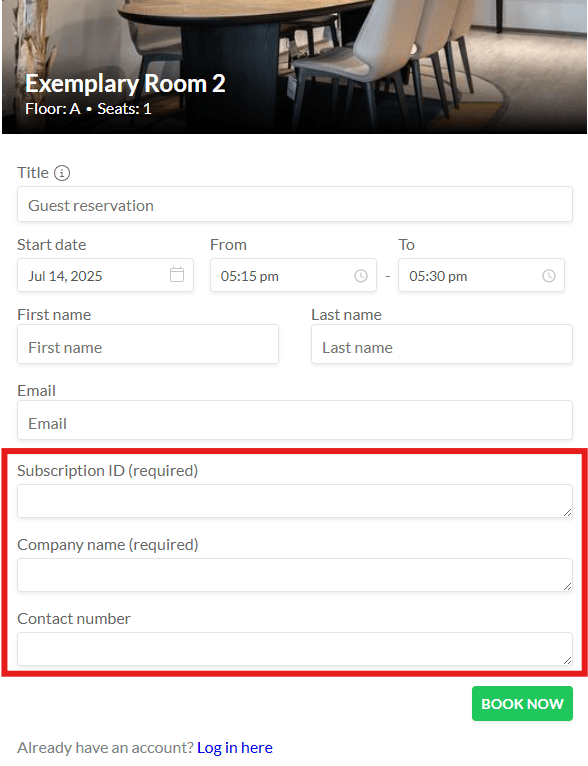
The custom form fields defined in the Settings section will automatically appear in the reservation modal during the booking process:
For members of the organization: custom fields are displayed below the reservation details.
For guests: custom fields are shown below the guest details section.
This ensures that all relevant information is collected in context, based on the type of user completing the reservation.
Access to submitted custom field information
All information entered by users in the custom fields during the booking process will be available to all administrators in the Reports section.
This ensures full visibility into reservation details and supports effective reporting and oversight.

The fields are also visible to all organization members (both admins and members) when viewing the reservation details in the schedule:
