
Custom Booking Limits
What are Booking Limits?
Booking limits let you control how much time users and teams can reserve resources: per day, week, or month. This ensures fair access to office space and prevents any single person or team from blocking resources beyond their actual needs.
How It Works
The system operates on two levels: user-based limits and team-based limits.
Rule Priority
When multiple rules could apply, the system selects the most specific rule.
A rule is considered more specific when it targets:
- a specific role (e.g. Member) instead of all users
- a specific resource group instead of all resources
- a specific team instead of all teams
Example:
- All users: 4h/day
- Members: 5h/day
A Member can book 5h/day, because the Member rule is more specific
Level 1: User-Based Limits
Create rules for specific roles (e.g. Member) or all users. Each rule can set:
- Daily time limit: total hours bookable in a single day
- Weekly time limit: total hours per week
- Monthly time limit: total hours per month
- Maximum single booking duration: e.g. no single reservation longer than 2h
- Concurrent reservation limit: e.g. max 1 active booking at the same time
Rules can be scoped to a specific resource group or applied to all resources. Multiple rules can run simultaneously.
Example: A Member has a 4h/day limit across all resources and a separate 1h/day limit for the “Chill Zone” resource group. Both rules apply at the same time.
Level 2: Team-Based Limits
Team limits work in two parts:
- Default team limit: a single cap that applies equally to all teams
- Per-team override: a custom limit set on a specific team that overrides the default for that team only
Example: Default for all teams: 20h/week. The Sales team has a custom override: 40h/week.
Combined Enforcement
User-based and team-based limits are applied together.
This means a booking must meet:
- the applicable user-based limit
- and the applicable team-based limit
Example: A team has a 4h daily limit and has already used 3h. The next member of that team can book at most 1h – even if their personal daily limit is 2h.
How to Configure
User-Based Limits
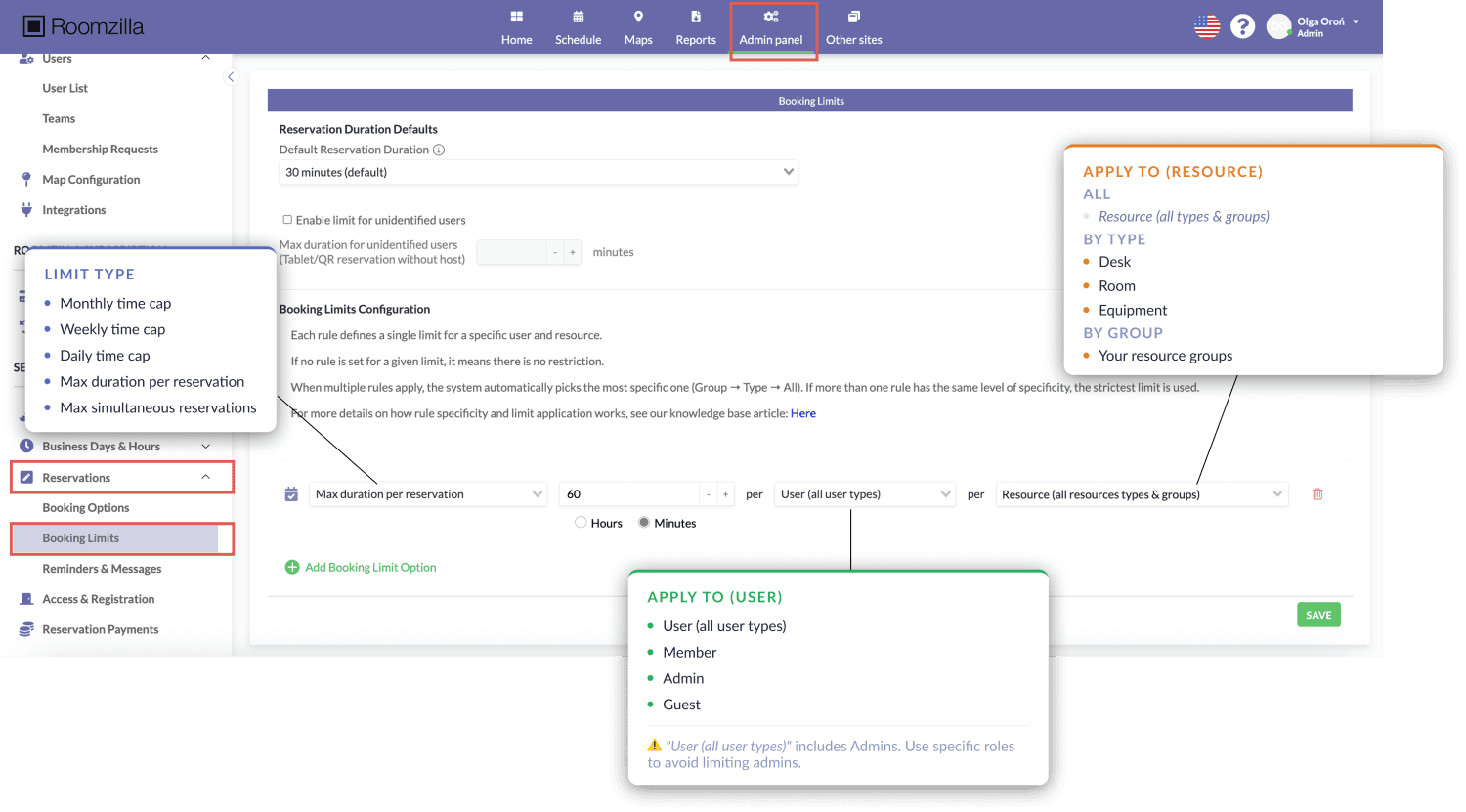
- Go to Admin Panel → Settings → Reservations → Booking Limits
- Click Add Rule
- Select the rule scope: role (e.g. Member, Guest) and resource group/type or all resources
- Set the desired limits
- Save- the rule takes effect immediately
To add another rule for the same role (e.g. a special limit for a specific resource group), repeat the steps above.
Team-Based Limits
Default limit for all teams:

- Go to Admin Panel → Settings → Reservations → Booking Limits
- Set the default team limit — this applies to every team unless overridden
- Save
Per-team override:
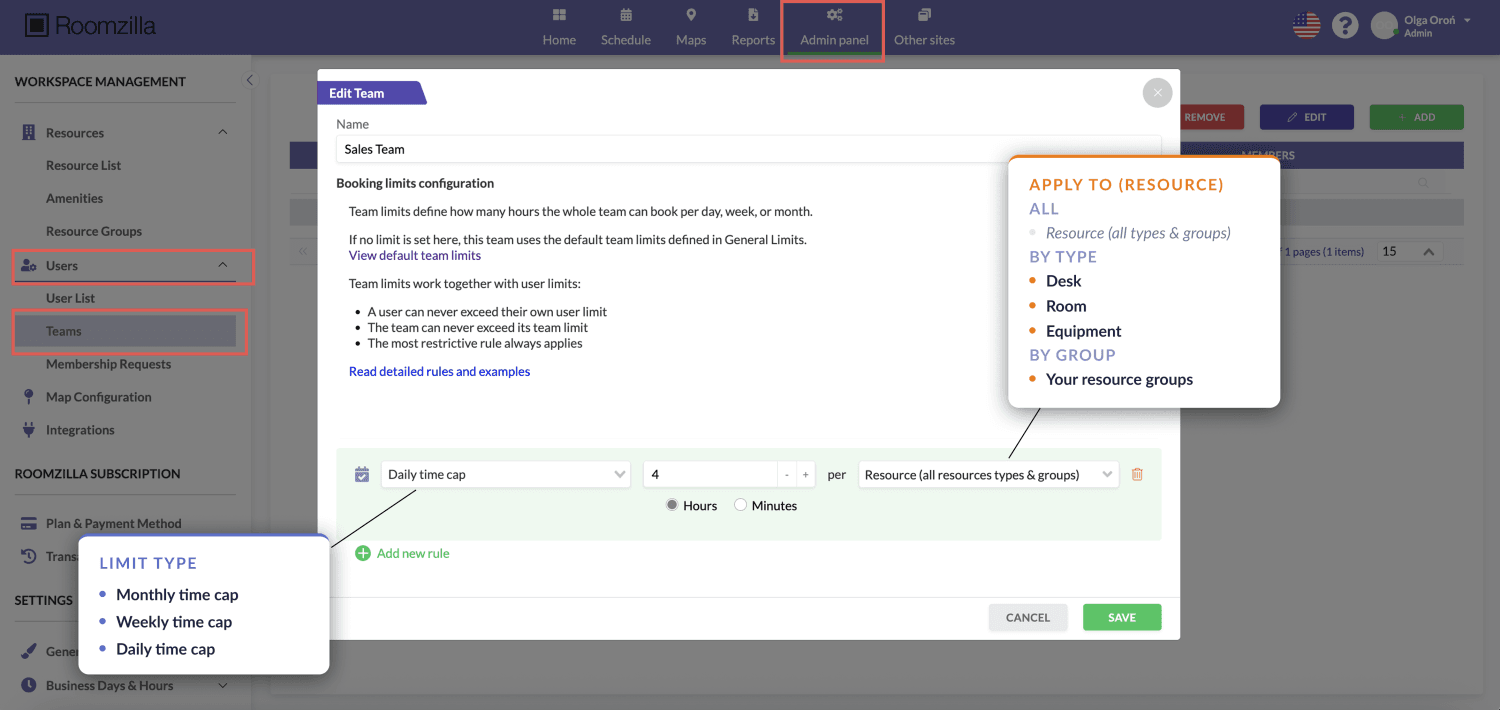
- Go to Admin Panel → Users → Teams
- Open the team you want to customize and edit it
- Set a custom limit for that team
- Save: this overrides the default for this team only
使用例
1. Guests on Paid Reservations: No Duration Limit
An external client books a meeting room for a full-day workshop or training. They pay for the actual time used, so the system should not block long reservations.
When setting up the maximum single booking duration rule, scope it to the Member role only — not “All users”. Guests are then simply not covered by the rule and can book for any duration.

- Go to Admin Panel → Settings → Reservations → Booking Limits
- Click Add Rule
- Set scope: Role Member, resource scope: All resources
- Set Maximum single booking duration (e.g. 2h)
- Save
2. Employees: Daily and Monthly Limit on Meeting Rooms
To ensure meeting rooms are accessible to everyone day-to-day, and that no one accumulates a disproportionate share of bookings over the month.
Both limits are set within a single rule and enforced independently — a user can book up to 4h on any given day, but once they reach 40h for the month, no further bookings are possible until the next month resets — even if they haven’t hit the daily limit that day.
Example: A member has used 38h this month. Even though their daily limit is 4h, they can only book 2 more hours before the monthly cap kicks in.

- Go to Admin Panel → Settings → Reservations → Booking Limits
- Click Add Rule
- Set scope: Role Member, resource scope: resource type Meeting Rooms
- Set Daily time limit (e.g. 4h)
- Set Monthly time limit (e.g. 40h)
- Save
3. Chill Zone (Game Room, Lounge, Kitchen): Short Daily Limit
Recreational spaces are popular and limited. Everyone should have equal access.
Prerequisite: The resources must first be grouped into a dedicated resource group. See: Resource Grouping – Roomzilla Knowledge Base
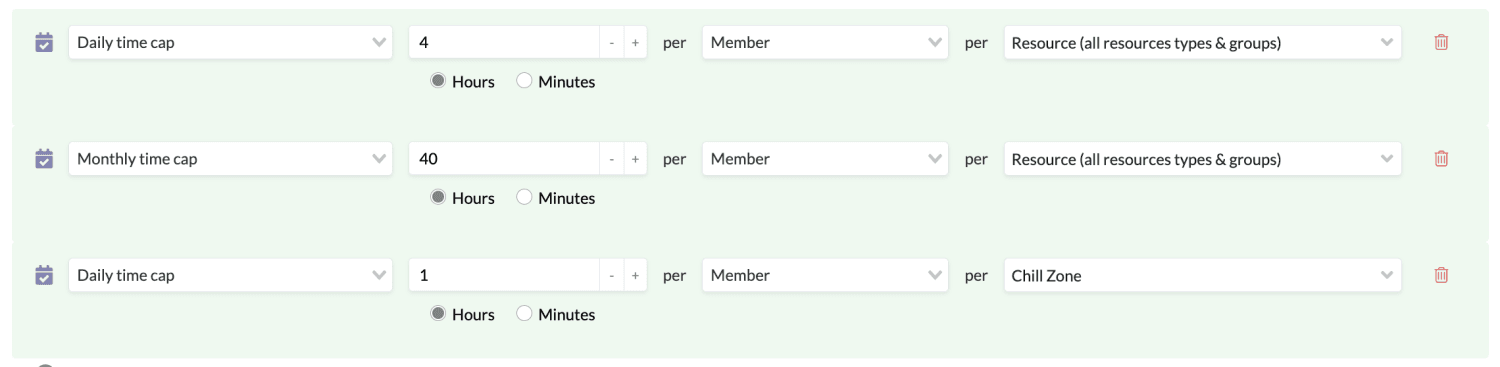
- Go to Admin Panel → Settings → Reservations → Booking Limits
- Click Add Rule
- Set scope: Role Member, resource scope: resource group Chill Zone
- Set Daily time limit (e.g. 1h)
- Save
This rule applies independently of any other limits the user may have on other resource types.
4. Hot-Desks: No Concurrent Reservations
Users should occupy only one desk at a time. Desks are a separate resource type and can be targeted directly — no resource group needed.

- Go to Admin Panel → Settings → Reservations → Booking Limits
- Click Add Rule
- Set scope: Role Member (repeat for other roles as needed), resource scope: resource type Desks
- Set Concurrent reservation limit: 1
- Save
5. Sales Team: Higher Team Limit
The Sales team runs more client meetings than other teams and needs a higher weekly cap.
Prerequisite: The Sales team must already exist in Roomzilla. See: Teams – Roomzilla Knowledge Base
Step 1 — Set the default limit for all teams:

- Go to Admin Panel → Settings → Reservations → Booking Limits
- Set the default team limit (e.g. 20h/week)
- Save
Step 2 — Override the limit for the Sales team:
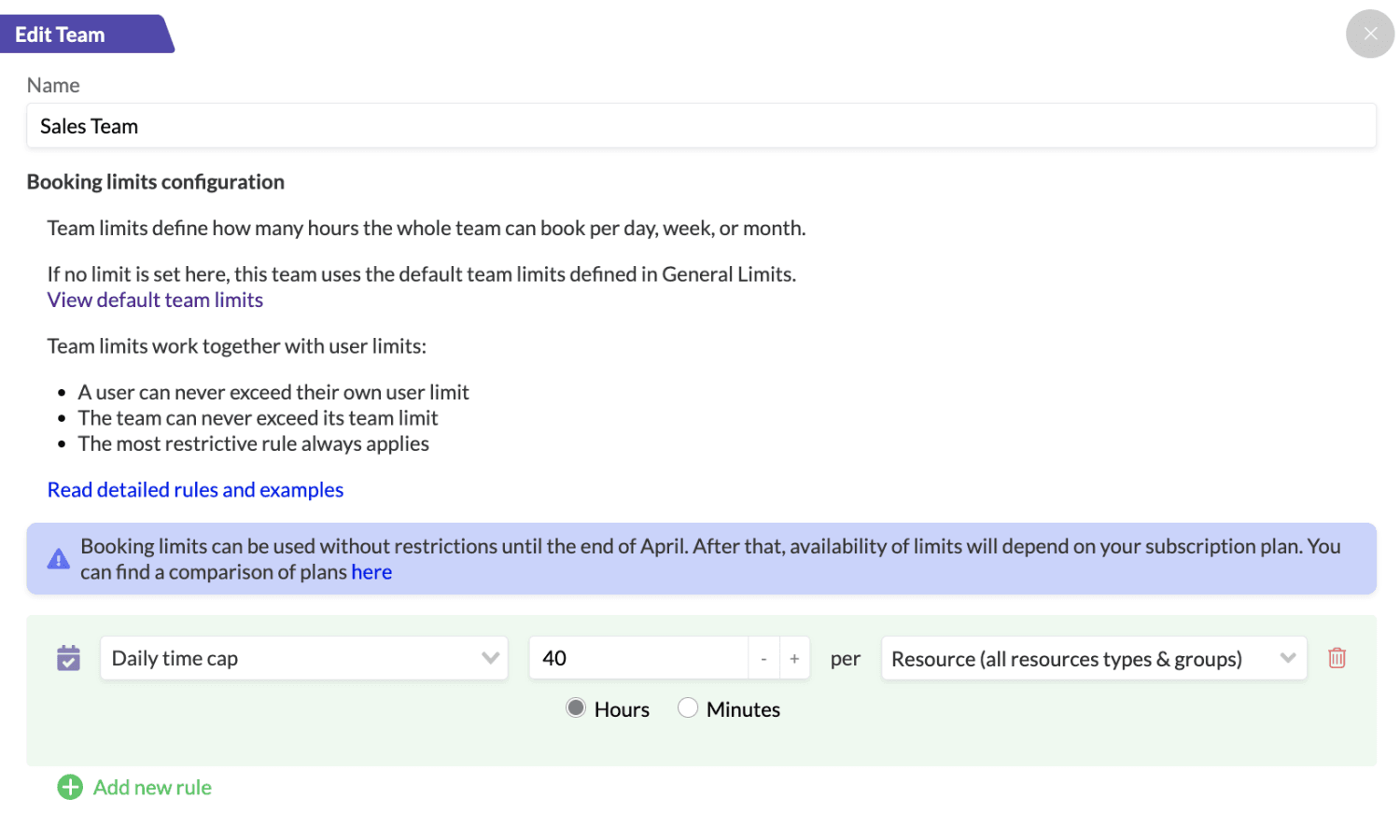
- Go to Admin Panel → Users → Teams
- Open the Sales team and edit it
- Set a custom weekly limit (e.g. 40h/week)
- Save
All other teams remain at 20h/week. Combined enforcement still applies — the team’s usage reduces the available time for each subsequent member within that team.
6. Administrators: No Limits
Important: The “All users” scope includes admins. If admins should remain unrestricted, always scope rules to specific roles — Member, Guest, or both- never “All users”. Admins not covered by any rule can book without limits.
When creating any rule, set the scope to a specific role:
- Go to Admin Panel → Settings → Reservations → Booking Limits
- Click Add Rule
- Set scope: Role Member or Guest (not “All users”)
- Set the desired limits
- Save