Teams
Teams
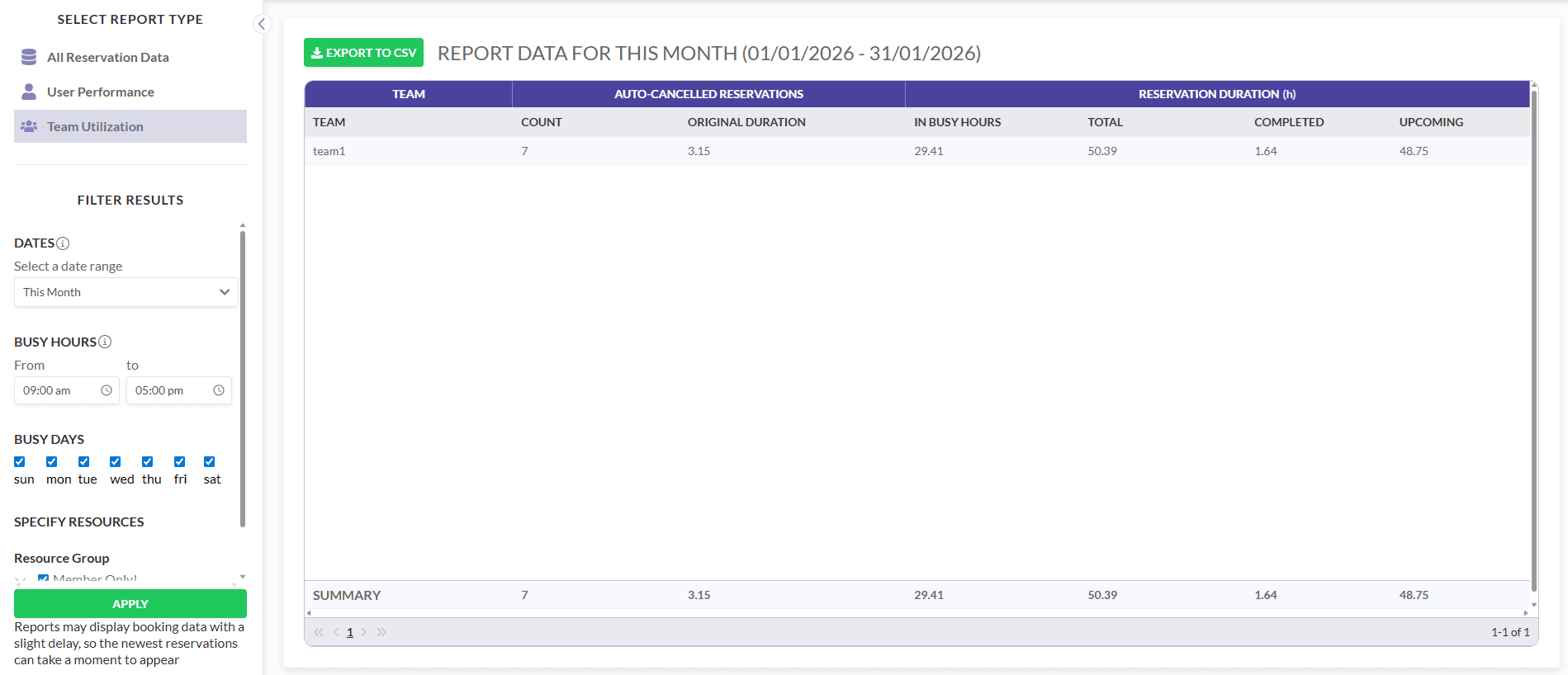
Assigning users to teams allows you to better organize your organization. By adding a user to an existing team or creating a new one, you can generate team-based reports, including the Team Utilization report, which shows reservation statistics aggregated by team, and easily view reservations within each team.
Teams help structure your organization, making it easier to manage users, reservations, and reporting. Each user can be assigned to one team at a time, but teams can have multiple users. Team assignments are optional, giving you flexibility in how you organize your users.
Once users are assigned to teams, admins can:
- Generate reports per team.
- View reservations grouped by team.
Assigning a user to a team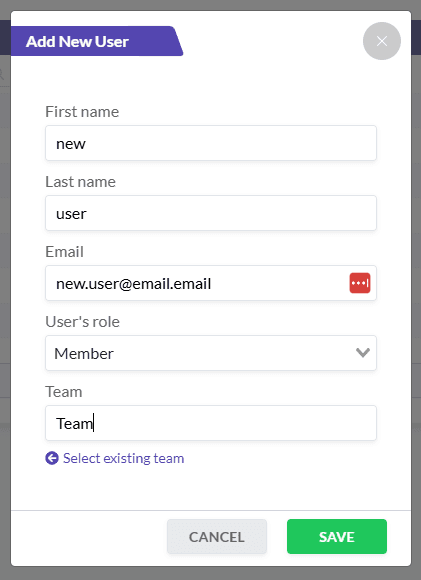
You can assign a team when adding a new user, editing an existing user, or via bulk upload.
Adding or editing a single user
- Go to the Add User or Edit User form.
- Locate the Team field below the Role field.
- Choose from the following options:
- Select an existing team: Click the dropdown to see a list of teams in alphabetical order.
- Create a new team: Click + Add new, enter the team name (up to 128 characters), and click Save.
- To unassign a user from a team, click the Unassign link next to the dropdown.
- Click Save to apply changes.
- If an existing team is selected, the user is assigned to that team.
- If a new team name is entered, the system creates the team and assigns the user.
Bulk upload
- Follow the standard bulk upload process.
- Include a Team column in your CSV file (optional).
- Any new team names included in the file will be created automatically during upload.
- Existing team names must match exactly to be recognized.
Viewing teams
- User List: There is a new Team column.
- User Profile: Displays the assigned team next to the user’s email.
Team Utilization report
The Team Utilization report provides a comprehensive overview of reservation statistics aggregated by team, helping admins and members understand usage and capacity.
Access permissions
All logged-in users can access the report.
Members:
- Visible only if the member is assigned to a team.
- Members see only their own team (one row).
Admins:
- Always visible, regardless of team assignment.
- Can view all teams.
The report includes the following columns:
| Column | 説明 |
|---|---|
| Team | Name of the team |
| Auto-Cancelled Reservations – Count | Number of reservations automatically cancelled |
| Auto-Cancelled Reservations – Original Duration (h) | Total duration (in hours) of all autocancelled reservations per team |
| Reservation Duration (h) – In Busy Hours | Hours booked during busy periods |
| Reservation Duration (h) – Total | Total hours of all reservations within the selected time range |
| Reservation Duration (h) – Completed | Hours of reservations that have already taken place or are currently ongoing |
| Reservation Duration (h) – Upcoming | Hours of reservations that are booked but have not yet started (still modifiable) |